


Not long ago, artificial intelligence felt like something only large companies with big budgets could use. In 2027, that picture has changed completely. A college student in Texas, a freelance designer in Ohio, or a small bakery owner in Oregon can open a browser, create a free account, and get real work done in minutes.
There is a problem, though. Search for the best free AI tools and you will find hundreds of options. Many of them look impressive on the homepage, then lock their best features behind a paywall after two or three uses. Others are fine for a quick experiment but fall apart when you try to use them for real work.

That is why we wrote this guide. We narrowed the field to ten tools that are genuinely worth your time, and for each one we explain what it does well, who it is best for, and where the free plan runs out. We also cover how to choose between them, how to get better results, and how to stay safe while using them.
If you create content for a blog or social channels, you can also explore the AI generators on Crestexa and see how Crestexa works alongside the tools below.
A quick note before you start: Free plans change often. The features and limits described here were accurate when this article was written, but companies adjust them regularly. Always check each tool’s pricing page before you rely on it for important work.
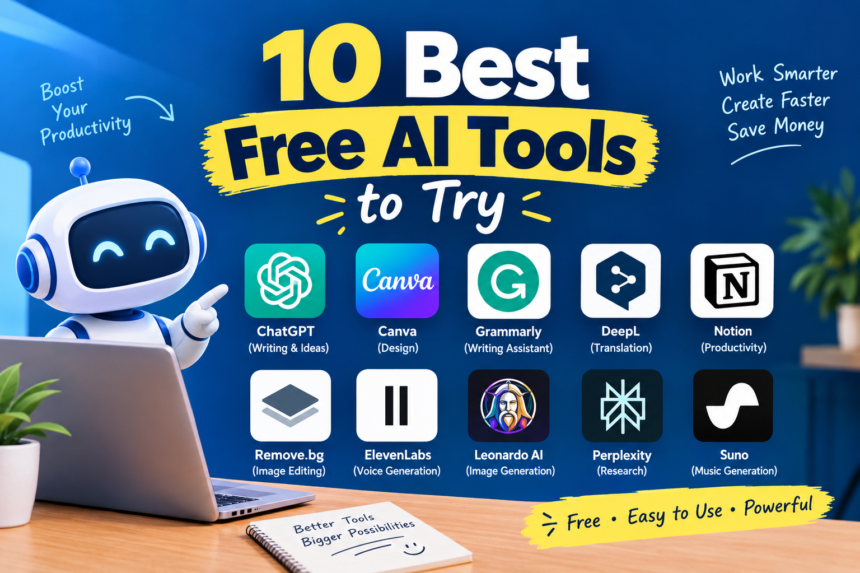
Quick Look: The 10 Best Free AI Tools at a Glance
If you are in a hurry, here is the short version.
- ChatGPT for everyday writing and general questions
- Google Gemini for people who live in Google Workspace
- Claude for long documents and natural-sounding writing
- Perplexity for research with sources
- Canva for fast, polished design
- NotebookLM for studying from your own materials
- Microsoft Copilot for Windows and Office users
- Otter.ai for meeting notes and transcripts
- Grammarly for cleaning up your writing
- Free AI rank tracker options for tracking SEO performance
Keep reading for the details, including a comparison table and a simple way to decide which tools fit your own workflow.
How We Picked the Best Free AI Tools
A list is only useful if the selection process makes sense. Here are the five things we looked at when choosing the best free AI tool for each job.

1. A genuinely useful free plan. We skipped tools that offer only a three-day trial or a demo so limited that you cannot finish a real task. If the free version cannot help you complete something meaningful, it did not make the list.
2. Ease of use. You should be able to sign up and get a useful result in a few minutes. Tools that need a long tutorial before they become useful were ranked lower.
3. Quality of the output. The point of AI is to save time. If a tool produces results that need heavy rewriting, you have not saved anything. We favored tools that give you a solid starting point.
4. Range of use. We wanted this list to be helpful to many different people, so it covers writing, research, design, studying, meetings, editing, and SEO.
5. Trust and privacy. We leaned toward well-known companies with clear privacy policies. When you paste your work into any online tool, you should know what happens to it.
1. ChatGPT (Free Plan): Best for Everyday Writing and Questions
ChatGPT is still the first AI tool most people try, and there is a good reason for that. It feels like having a patient assistant who is available at any hour. You type a question or a request in plain English, and it responds in seconds.
The free plan is enough for a surprising amount of everyday work. You can ask it to draft an email, outline a blog post, brainstorm product names, explain a confusing concept, or summarize a long block of text. It is also useful for smaller tasks, like rewriting a sentence in a friendlier tone or turning a list of rough notes into clean bullet points.

Where it shines: General-purpose help. If you are not sure which tool to start with, this is a safe first choice because it handles so many different kinds of requests.
Best for: Writers, students, marketers, and anyone who wants one flexible assistant for daily tasks.
Watch out for: The free plan has usage caps, so heavy users may hit a limit during busy periods. Like all AI tools, it can state incorrect information with confidence, so check facts, dates, and statistics before you publish anything.
Pro tip: Give it context. Instead of asking for “a product description,” tell it who the customer is, what the product does, and what tone you want. The quality of the answer improves dramatically.
Related on Crestexa: Need a stronger headline for your draft? Try the Blog Title Generator or read 5 AI Prompts That Instantly Improve Your Blog Titles.
2. Google Gemini: Best for Google Workspace Users
If your day revolves around Gmail, Google Docs, Google Drive, and Google Calendar, Gemini is a natural fit. It comes from the same company behind those products, and it is designed to work well within that world.
In practice, Gemini is useful for summarizing long emails, drafting replies, answering questions, brainstorming ideas, and helping you understand unfamiliar topics. Because it draws on Google’s approach to information, it can feel especially comfortable for people who already trust Google for search.

Where it shines: Convenience. When your documents, emails, and files already live in Google’s ecosystem, you spend less time copying and pasting between apps.
Best for: Students, office workers, and small teams that already use Google Workspace every day.
Watch out for: Some of the more advanced features are available only on paid plans, and the way Gemini connects to your Google apps can vary depending on your account type. Check what your specific account includes.
Pro tip: Use it to turn a messy email thread into a short summary with clear next steps. It is a small habit that saves a lot of reading time.
3. Claude (Free Plan): Best for Long Documents and Natural Writing
Claude, made by Anthropic, has built a reputation for handling long documents and producing writing that sounds less robotic. If you have ever read AI-generated text that felt stiff or repetitive, you will understand why that matters.
The free plan is helpful for editing rough drafts, explaining complicated topics in simple language, organizing messy notes into a clear structure, and summarizing reports. It tends to do well when you give it a long piece of text and ask for thoughtful feedback instead of a quick answer.

Where it shines: Writing and editing. Many people use it as a second pair of eyes on a draft, asking it to point out unclear sections, tighten wording, or suggest a better order for the ideas.
Best for: Editors, bloggers, researchers, and anyone who works with long documents.
Watch out for: Free usage limits can reset throughout the day, and you may hit them faster when working with very large files. Plan your heavier tasks around that.
Pro tip: Paste in your own draft and ask, “Where does this lose the reader?” You will often get more useful feedback than from a request to simply “improve” the text.
Related on Crestexa: If you want a full first draft from just a topic and keywords, the Blog & Article Writer is a handy companion.
4. Perplexity: Best for Research With Sources
Perplexity sits somewhere between a search engine and an AI assistant. You ask a question, and it writes a clear answer while showing the sources it used. That one feature, visible sources, makes a big difference when you care about accuracy.

For research, this saves time. Instead of opening ten browser tabs and skimming each one, you get a summary and a trail of links you can follow. It is especially good for learning a new topic quickly, comparing options, or finding a starting point for deeper reading.
Where it shines: Fact-finding and early-stage research. You can see where a claim came from and decide for yourself whether the source is trustworthy.
Best for: Students, journalists, content writers, and curious people who want fast, sourced answers.
Watch out for: A summary is still a summary. Always click through to the original source for anything important, because short answers can miss nuance or context. Some advanced search features are limited on the free plan.
Pro tip: When researching for an article, use it to find sources first, then read those sources yourself before you write a single sentence.
5. Canva (Magic Studio Free Features): Best for Design
Most people do not have design training, but almost everyone needs to create something visual at some point: a social media post, a flyer, a presentation, a simple logo, or a thumbnail. Canva has long been the go-to tool for non-designers, and its AI features make it even faster.
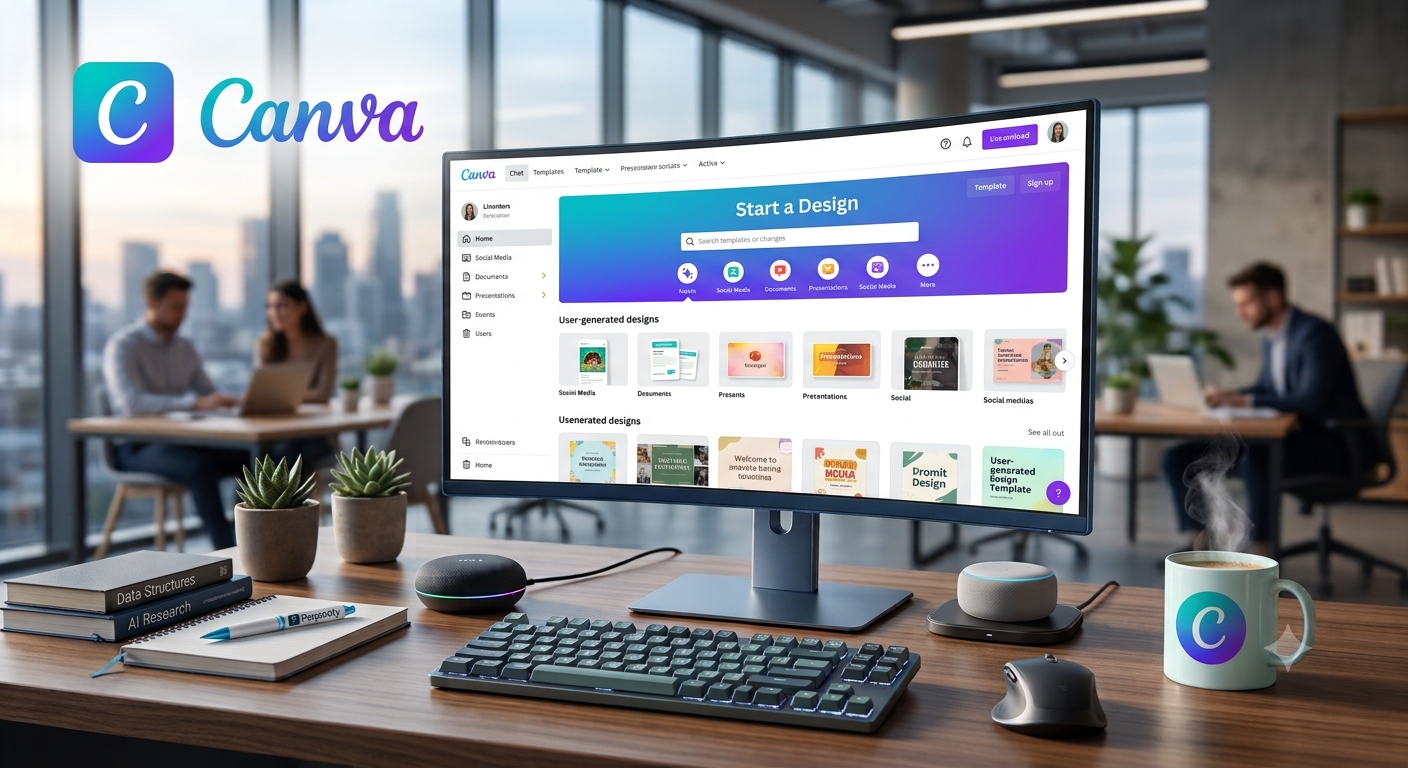
The free AI features can help you generate design ideas, write short text for your graphics, and adjust images without opening complicated software. Combined with Canva’s large library of templates, you can produce something that looks professional in a few minutes.
Where it shines: Speed and simplicity. You do not need to understand layers, fonts, or color theory to end up with a clean result.
Best for: Small business owners, bloggers, teachers, and social media managers.
Watch out for: The most advanced AI features and premium assets generally require a paid subscription. The free tier is generous, but you will notice the limits if you design daily.
Pro tip: Start from a template and change only the text, colors, and one image. It is faster than starting from a blank page and keeps your design consistent.
Related on Crestexa: Want to go beyond templates? Read Mastering Nano Banana 2.5: A Step-by-Step Guide for AI image creation, and use the Social Media Captions tool to write the text that goes with your graphics.
6. NotebookLM: Best for Studying and Learning
Most AI tools answer from a huge body of general knowledge. NotebookLM works differently. You upload your own materials, such as lecture notes, PDFs, articles, or research papers, and it answers questions based on what you gave it.
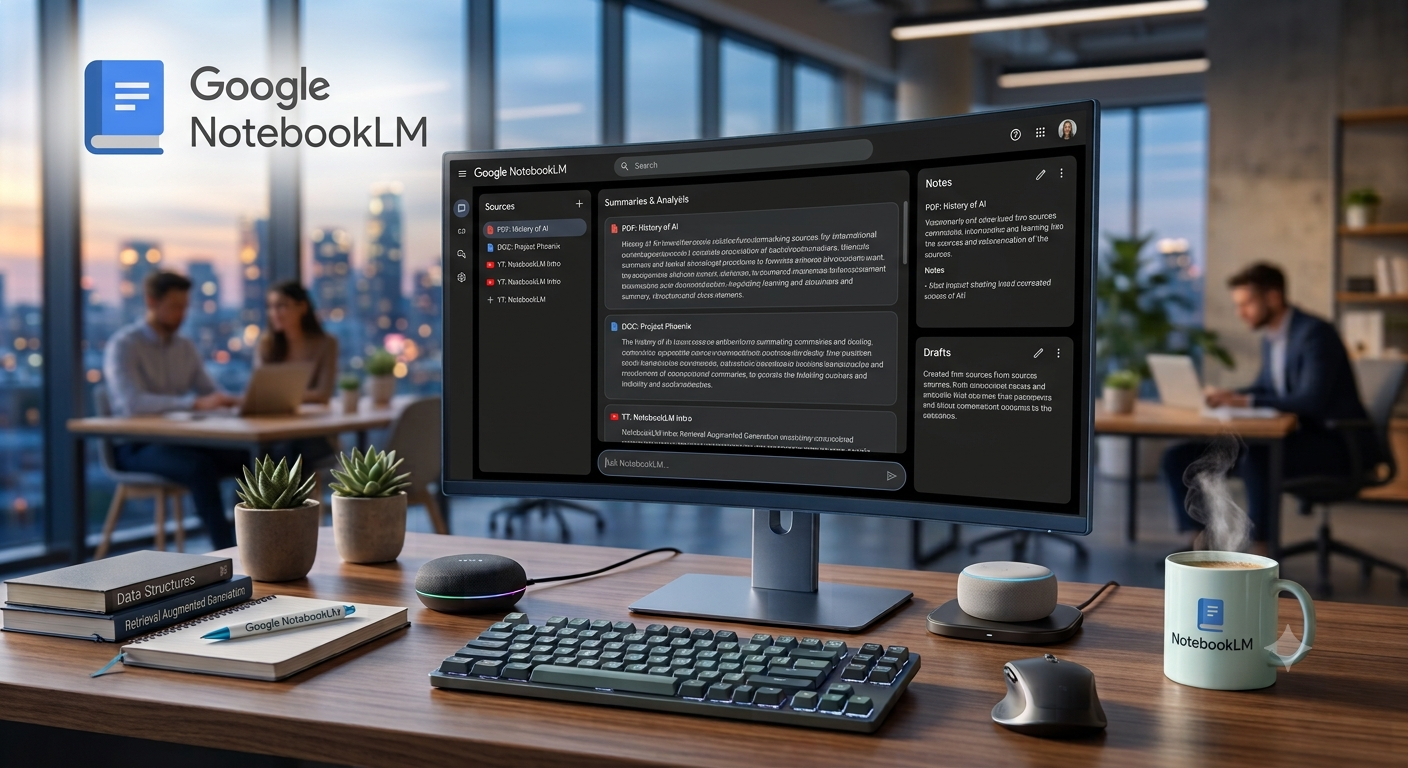
That approach makes it very useful for studying. You can ask it to summarize a chapter, create a list of key terms, explain a difficult section in simpler words, or pull out the main arguments from several documents at once. Because the answers are tied to your own sources, it is easier to trace where a claim came from.
Where it shines: Turning a pile of reading into something you can actually work with.
Best for: Students, researchers, and anyone digging into long or complicated source material.
Watch out for: It can only work with what you provide, so the quality of your answers depends on the quality of your uploads. There are also limits on the number and size of sources on the free plan.
Pro tip: Upload everything related to one project into a single notebook, then ask it to find where your sources disagree. That is often where the most interesting insights are hiding.
7. Microsoft Copilot: Best for Windows and Office Users
Microsoft Copilot is built into Microsoft’s ecosystem, including the Edge browser and Windows. If you work on a Windows computer, there is a good chance you already have access to it.
It handles quick drafting, summarizing, answering questions, and creating images. For people who do most of their work in Microsoft products, having an assistant built into the tools they already open every day removes a lot of friction.
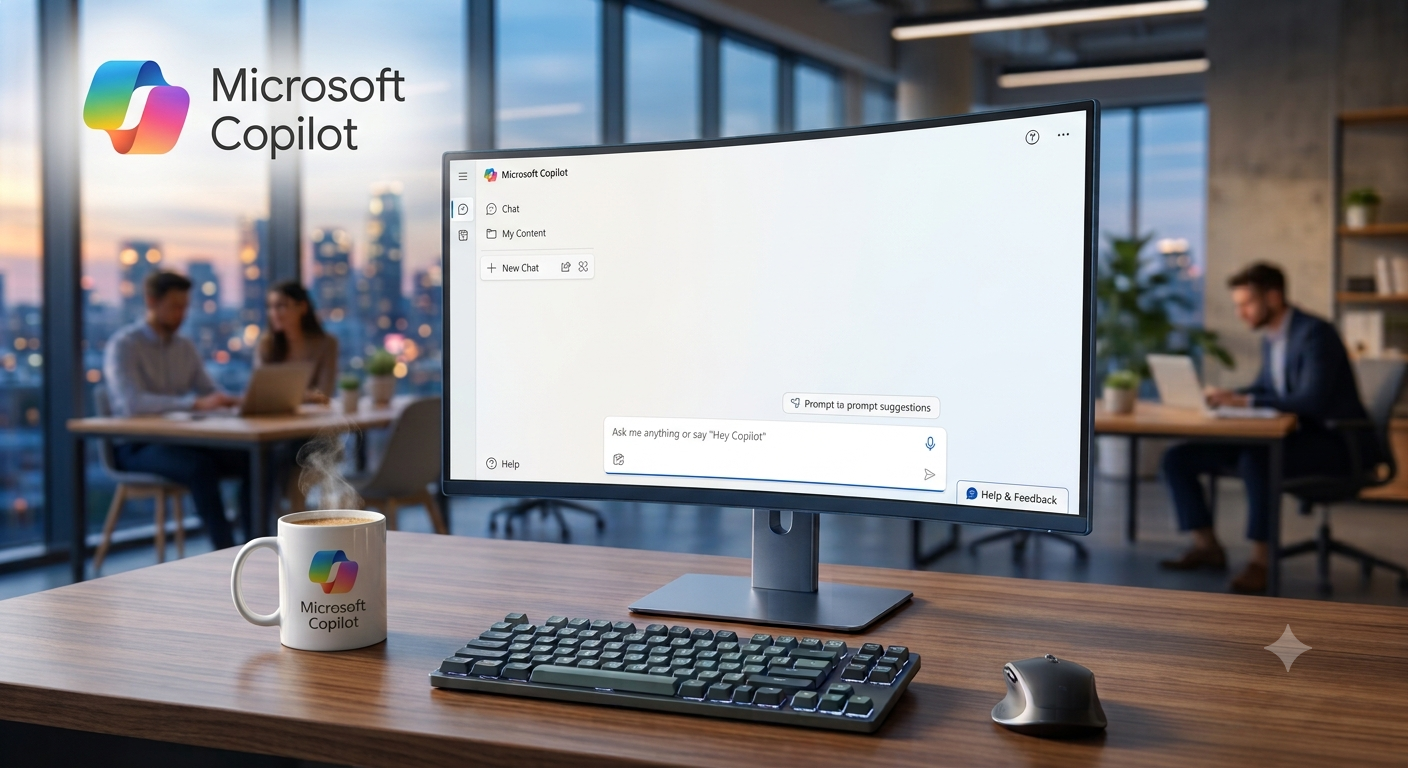
Where it shines: Convenience for Windows and Microsoft users. There is nothing extra to install in many cases.
Best for: Office workers, students on Windows laptops, and people who prefer a built-in assistant.
Watch out for: The deepest integration with Word, Excel, and PowerPoint generally requires a paid Microsoft 365 plan. The free version is useful, but it is not the same as the full Office experience.
Pro tip: Use it to turn a rough list of bullet points into a polished first draft, then edit that draft yourself so it sounds like you.
8. Otter.ai (Free Plan): Best for Meeting Notes
Typing up meeting notes is one of those tasks nobody enjoys. Otter.ai listens to your calls and turns the conversation into a searchable transcript, often with a short summary and action items.
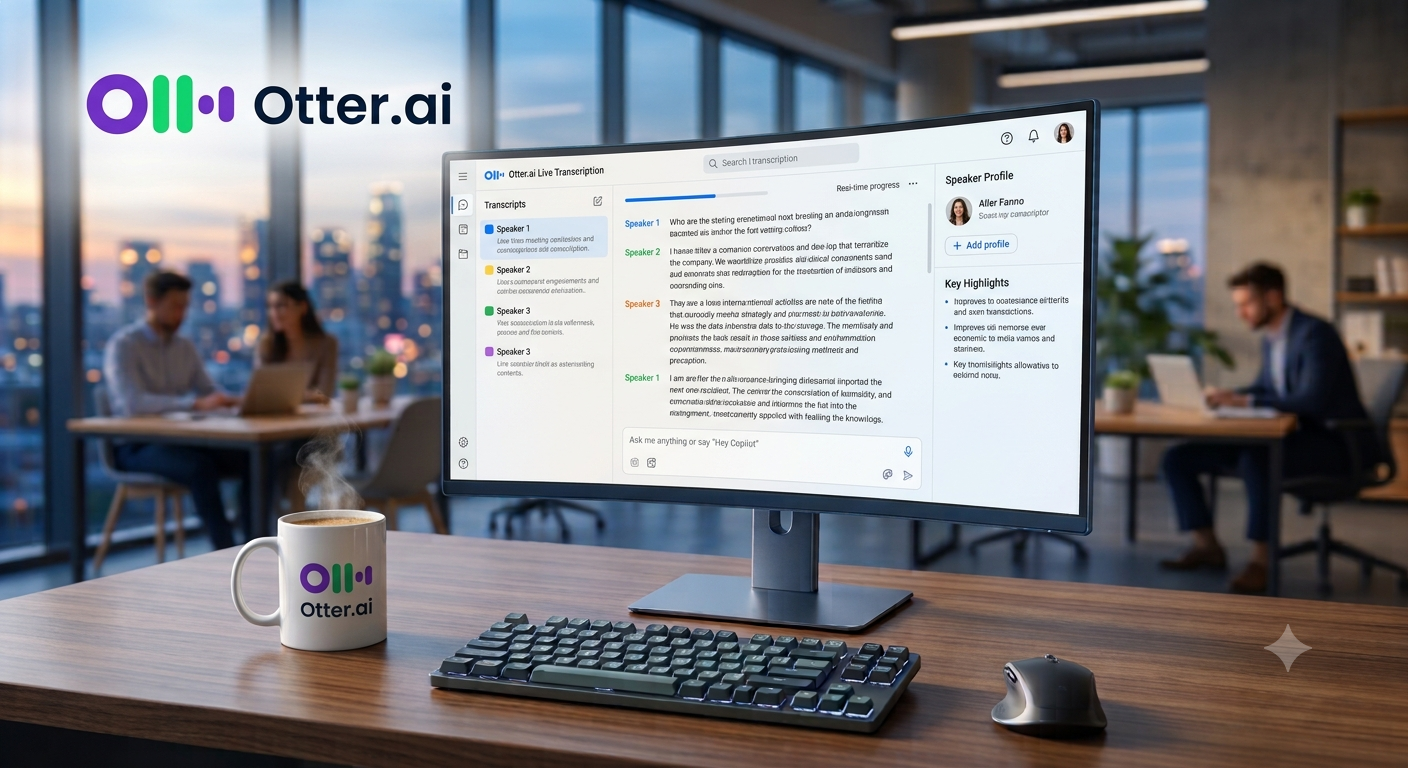
That means you can focus on the conversation instead of scrambling to write everything down. Afterward, you can search the transcript for a specific topic, a name, or a decision that was made.
Where it shines: Saving time after meetings, interviews, and lectures.
Best for: Remote workers, students, journalists, and anyone who sits through a lot of calls.
Watch out for: The free plan limits how many transcription minutes you get each month, and the length of each conversation may be capped. Also, always tell people when you are recording a call. Recording laws vary by state, so be transparent and get consent.
Pro tip: Review the summary within a day of the meeting, while you still remember the context. Fix any names or terms the transcript got wrong.
9. Grammarly (Free Plan): Best for Fixing Your Writing
Good writing builds trust, and even strong writers make small mistakes. Grammarly checks your spelling, grammar, punctuation, and tone as you type, in your browser, in your email, and in many other places you write.
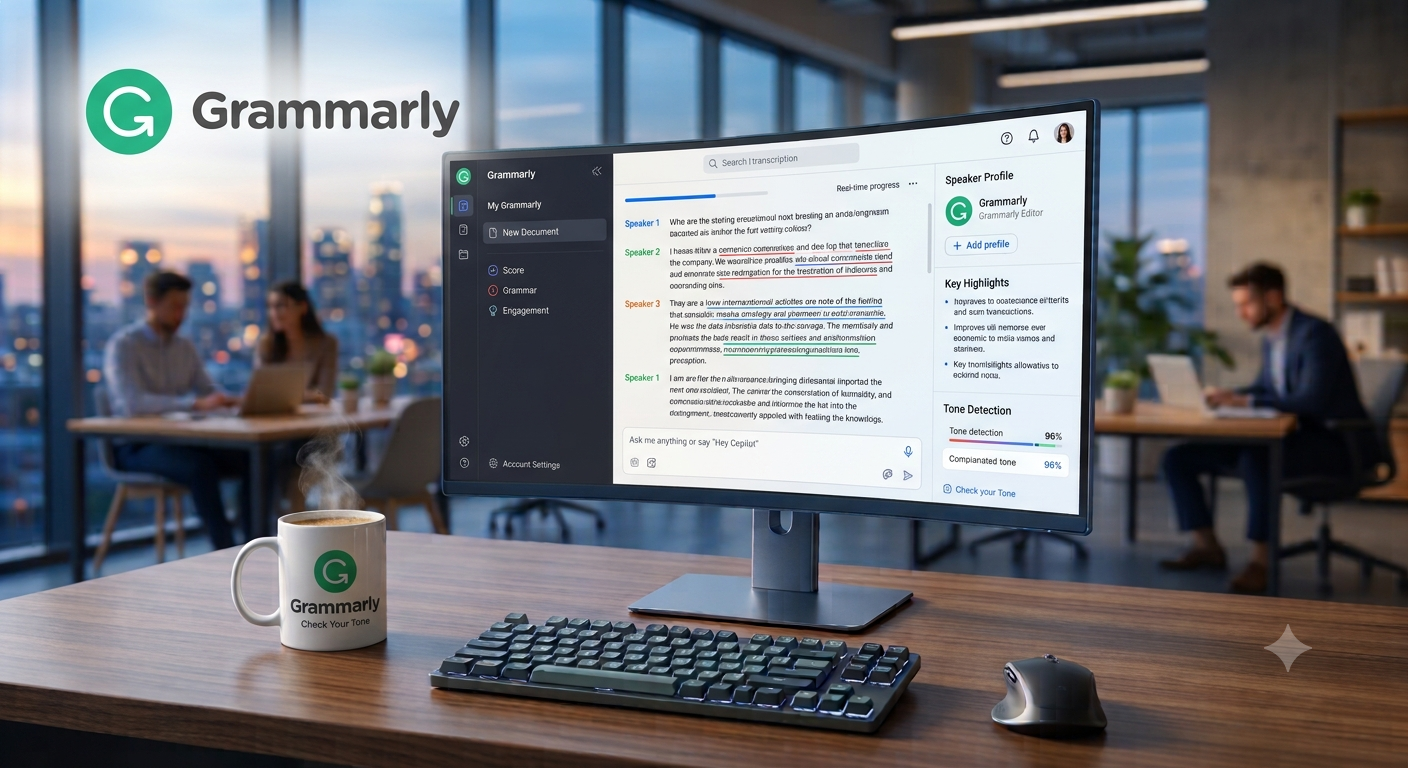
The free version covers the basics well, and for most emails, social posts, and short documents, that is all you need. It catches typos you would miss, flags awkward sentences, and nudges you toward clearer phrasing.
Where it shines: Everyday polish. It works quietly in the background and helps you avoid embarrassing errors.
Best for: Professionals, students, and non-native English speakers who want extra confidence in their writing.
Watch out for: The more advanced suggestions, such as full-sentence rewrites and detailed tone adjustments, are part of the paid tier. Also, do not accept every suggestion automatically. Sometimes your original wording is better.
Pro tip: Pair it with a general AI assistant. Use ChatGPT or Claude to draft and restructure, then use Grammarly as the final proofreading pass.
Related on Crestexa: Want to reword a sentence in a different voice? The Paraphrase & Tone Changer can help, and the Email Subject Line tool is useful for higher open rates.
10. Best Free AI Rank Tracker Tool Options for SEO
If you run a website or blog, you need to know where your pages show up on Google. Many people search for the best free AI rank tracker tool, and the honest answer is that no single free tool does everything. The smartest approach is to combine a few of them.
Google Search Console. This is free, reliable, and comes straight from Google. It shows the real search queries your site appears for, along with clicks, impressions, and your average position. For a new website, it should always be your first stop.
Ahrefs Webmaster Tools. Free for websites you own, it offers site audits and backlink data. It helps you find technical problems and understand who links to you.
Semrush (free account). A limited free account lets you track a small set of keywords and explore basic SEO data. It is enough to get a feel for the platform before deciding whether to upgrade.
Many SEO platforms are now adding AI features, such as automated insights, content suggestions, and plain-language summaries, so the line between an “SEO tool” and an “AI tool” keeps getting thinner.
How to use them together: Start with Search Console to see what is already working. Use a second tool to look at backlinks or track a handful of priority keywords. Do not try to track everything on day one. Focus on the ten or twenty keywords that matter most to your business.
Best for: Bloggers, small business owners, and beginner SEOs.
Watch out for: Free plans cap how many keywords, pages, or reports you can use. Rankings also vary by location and device, so treat any single number as a rough guide, not an exact score.
Quick Comparison Table
| Tool | Best For | Free Plan Limits |
|---|---|---|
| ChatGPT | Writing and general questions | Usage caps |
| Google Gemini | Google Workspace users | Some features paid |
| Claude | Long documents and editing | Usage caps |
| Perplexity | Research with sources | Limited advanced searches |
| Canva | Design | Premium AI features paid |
| NotebookLM | Studying and research | Source and usage limits |
| Microsoft Copilot | Windows and Office users | Deep Office features paid |
| Otter.ai | Meeting notes | Monthly minute cap |
| Grammarly | Editing and proofreading | Advanced suggestions paid |
| Search Console, Ahrefs Webmaster Tools, Semrush free | Rank tracking | Limited keywords or sites |
How to Choose the Best Free AI Tool for You
You do not need all ten of these tools. In fact, signing up for everything at once is the fastest way to end up with a dozen accounts you never open. A better approach is to start with the biggest time-waster in your week and solve that first.
- Writing takes too long? Try ChatGPT or Claude.
- Doing a lot of research? Try Perplexity or NotebookLM.
- Need visuals quickly? Use Canva.
- Drowning in meetings? Use Otter.ai.
- Worried about typos and tone? Add Grammarly.
- Living in Google or Microsoft apps? Start with Gemini or Copilot.
- Running a website? Begin with Google Search Console.
Use one tool for a full week before adding another. By the end of that week, you will know whether it saves you real time. That is the simplest way to find the best free AI tool for your own workflow, because the right answer is different for a student, a freelancer, and a business owner.
Which Free AI Tool Is Best for Different People?
Sometimes it helps to see the recommendations organized by who you are.
For students: Combine NotebookLM for studying, Perplexity for research, and Grammarly for polishing essays. Use AI to understand material, not to replace your own work. Many schools have rules about AI use, so check yours.
For freelancers and writers: Use ChatGPT or Claude for outlines and rough drafts, Grammarly for proofreading, and Canva for quick graphics. Always add your own voice and experience before delivering work to a client.
For small business owners: Canva handles marketing visuals, ChatGPT helps with product descriptions and customer emails, and Search Console shows how people find your website. Otter.ai can save time if you often meet with clients.
For remote teams: Otter.ai for meeting notes, Gemini or Copilot for summarizing documents, and a shared prompt library so everyone gets consistent results.
For bloggers and SEO beginners: Perplexity for research, a general AI assistant for outlines, and Search Console plus one other free SEO tool to track results over time.
Tips for Getting Better Results From Free AI Tools
Most disappointing AI results come from vague instructions, not weak tools. These habits make a noticeable difference.
1. Be specific. A request like “Write a 150-word introduction about free AI tools for college students, in a friendly tone” will always beat “write an intro.” Tell the tool who the audience is, how long the answer should be, and what tone you want.
2. Give examples. If you have a writing sample you like, paste it in and ask the tool to match the style. Examples are one of the easiest ways to improve quality.
3. Work in steps. Instead of asking for a finished article in one go, ask for an outline first, then each section, then a revision. You will stay in control of the direction.
4. Edit everything. Treat AI output as a first draft, never the final version. Add your own stories, opinions, and real examples. That is what makes content feel human and trustworthy.
5. Fact-check numbers and claims. AI can sound very confident and still be wrong. Verify statistics, dates, names, and quotes with a reliable source before you publish or share them.
6. Protect private information. Do not paste passwords, financial details, client information, or confidential documents into any free tool. If you would not post it publicly, think twice before pasting it into a chatbot.
7. Keep a prompt notebook. When a prompt works well, save it. Over time you will build a personal library that saves you even more time.
Common Mistakes to Avoid
People new to AI tools often fall into the same traps.
- Publishing raw AI text. Readers can usually tell, and search engines reward content that shows real experience and original thinking.
- Trusting answers without checking. A confident tone is not proof of accuracy.
- Collecting too many tools. More accounts do not mean more productivity.
- Ignoring the fine print. Free plans have limits, and some tools use your inputs in ways you may not expect. Read the privacy settings.
- Expecting perfect results on the first try. Good output usually comes from two or three rounds of refinement.
Frequently Asked Questions
What are the best free AI tools in 2027?
ChatGPT, Google Gemini, Claude, Perplexity, Canva, NotebookLM, Microsoft Copilot, Otter.ai, Grammarly, and a handful of free SEO tools are strong places to start. Which one is best depends on what you want to do.
Is there a truly free AI tool with no limits?
Rarely. Most free plans have daily or monthly caps, or keep their most advanced features for paying customers. For personal use and light professional work, though, the free tiers are usually generous enough.
What is the best free AI rank tracker tool?
Google Search Console is the best free starting point for tracking how your site performs on Google. Ahrefs Webmaster Tools and a free Semrush account can add useful extra data, especially for backlinks and a small set of tracked keywords.
Are free AI tools safe to use?
Tools from established companies are generally safe, but you should still read the privacy policy and avoid sharing sensitive information. Be especially careful with client data, financial details, and anything confidential.
Can AI tools replace human writers?
They can speed up the process, but they work best alongside a person who adds experience, judgment, and original ideas. The strongest content usually combines AI efficiency with human insight.
Do I need to pay for AI tools to get good results?
Not at first. Free plans are enough to learn what works for you. If you find yourself hitting limits every day, that is a good sign a paid plan might be worth considering.
How often should I check for new free AI tools?
The space moves quickly, so a quick review every few months is plenty. There is no need to chase every new launch.
Final Thoughts
The best free AI tools in 2027 can save you hours every week, whether you are writing, studying, designing, taking meeting notes, or tracking your SEO progress. You do not need a big budget or a technical background to benefit from them.
Here is a simple plan. Pick one or two tools from this list. Try them on a real task you already have to do this week. Keep the ones that save you time, and drop the ones that do not. That beats signing up for a dozen accounts you will never open again.
And remember that AI works best as a helper, not a replacement. Bring your own knowledge, your own voice, and your own judgment, and these tools will make you faster without making your work sound generic.
Related Tools and Posts on Crestexa
Continue exploring with these free tools and guides:
- AI Generators: the full list of AI content tools
- Blog Title Generator: catchy, SEO-friendly headlines
- Blog & Article Writer: outlines, intros, and full drafts
- Social Media Captions: captions for Instagram, LinkedIn, TikTok, and X
- Video Scripts & Hooks: scripts for YouTube, Reels, and Shorts
- Paraphrase & Tone Changer: reword copy in any tone
- 5 AI Prompts That Instantly Improve Your Blog Titles
- Mastering Nano Banana 2.5: A Step-by-Step Guide
- More articles on the Crestexa blog