
How to Turn On Developer Mode on Chromebook: A Complete Guide for Power Users
Chromebooks have become increasingly popular in educational institutions, businesses, and among individual users seeking affordable, secure computing solutions. While Chrome OS offers a streamlined experience designed for simplicity and security, many users eventually find themselves wanting more control over their device. This is where Developer Mode comes in.
Developer Mode on Chromebook unlocks advanced capabilities that allow users to access the underlying Linux system, install custom firmware, run alternative operating systems, and bypass certain Chrome OS restrictions. Whether you’re a software developer testing applications, an IT professional managing devices, or a tech enthusiast exploring your Chromebook’s full potential, learning how to turn on developer mode chromebook is essential.
However, this powerful feature comes with important considerations. Enabling Developer Mode removes several security protections that make Chrome OS one of the most secure operating systems available. It also wipes all local data from your device during the process. According to Google’s security documentation, devices in Developer Mode are more vulnerable to malicious software and physical attacks, making this decision one that requires careful consideration.
In this comprehensive guide, we’ll walk you through everything you need to know about enabling Developer Mode on your Chromebook, including preparation steps, the activation process, potential risks, and practical use cases that justify taking this step.
Also Read: What Is Adaptive Software Development and Why It Matters Today
Understanding Developer Mode: What It Is and Why It Matters
Developer Mode is a special operating mode that grants users administrative access to Chrome OS’s underlying system. Think of it as removing the “safety locks” that Chrome OS places on the system to protect average users from making harmful changes.
Key capabilities unlocked by Developer Mode include:
- Full root access to the Chrome OS Linux shell
- Ability to modify system files and configurations
- Installation of custom firmware or BIOS
- Running Linux distributions alongside Chrome OS
- Installing Android apps from sources outside the Play Store
- Testing experimental features and developer tools
- Creating custom recovery images
According to industry data, approximately 2-3% of Chromebook users enable Developer Mode, with the highest concentration among software developers, cybersecurity professionals, and educational technology administrators who need testing environments.
Important distinction: Developer Mode is different from Linux (Beta) on Chromebook. Linux (Beta) provides a secure, containerized Linux environment without compromising Chrome OS security. Developer Mode, by contrast, removes security barriers and provides unrestricted system access.
Before You Enable Developer Mode: Critical Preparation Steps
Understanding how to turn on developer mode chromebook safely requires knowing what happens before, during, and after the process. Enabling Developer Mode is not a decision to make lightly. The process fundamentally changes how your Chromebook operates and comes with significant consequences.

Data Backup Requirements
The most critical fact about enabling Developer Mode is that it completely wipes your Chromebook. Every file, setting, download, and locally stored piece of data will be permanently erased. This is a security measure designed to prevent unauthorized access to your information.
Before proceeding, ensure you’ve backed up:
- Documents stored in the Downloads folder
- Screenshots and local images
- Installed Android apps (you’ll need to reinstall them)
- Browser settings and bookmarks (though these typically sync with your Google account)
- Any files in Linux (Beta) if you’re using it
- Saved passwords not synced to your Google account
Most Chromebook users store files in Google Drive, which means they remain safe in the cloud. However, anything stored locally will be lost. Take time to verify that all important files are properly backed up before proceeding.
Security Implications to Consider
Developer Mode fundamentally alters Chrome OS’s security model. The operating system will no longer perform verified boot, which means it won’t check if the system has been tampered with during startup.
Specific security risks include:
- Vulnerability to physical attacks if someone gains access to your device
- Potential for malicious software installation
- Loss of automatic system security updates (though updates still occur)
- Removal of data encryption at rest
- Warning screens at every boot reminding you of reduced security
These risks make Developer Mode inappropriate for devices handling sensitive business data, personal financial information, or any scenario where device security is paramount. Many organizations explicitly prohibit Developer Mode on managed Chromebooks through enterprise policies.
Warranty and Support Considerations
Enabling Developer Mode generally does not void your hardware warranty, but it can complicate support situations. If you need technical assistance from your Chromebook manufacturer or Google, support staff may ask you to disable Developer Mode before troubleshooting, which will wipe your device again.
For enterprise or education-managed devices, enabling Developer Mode may violate acceptable use policies and could result in administrative consequences. Always check with your IT department before modifying a device you don’t personally own.
Step-by-Step Guide: How to Turn On Developer Mode on Chromebook
Once you’ve backed up your data and understand the implications, the actual process of how to turn on developer mode chromebook is straightforward, though it varies slightly depending on your Chromebook model. Follow these detailed steps carefully to ensure a successful transition.
Step 1: Power Down Your Chromebook
Fully shut down your Chromebook rather than simply closing the lid. Click the system tray in the lower-right corner, then select the power icon and “Shut down.” Wait for the device to completely power off before proceeding.
Step 2: Enter Recovery Mode
To enable Developer Mode, you must first boot into Recovery Mode. The key combination varies by manufacturer:
For most Chromebooks: Press and hold Esc + Refresh (F3), then press the Power button while holding the other two keys. Release all keys when you see the recovery screen.
For Chromebook tablets: Hold Volume Up + Power for at least 10 seconds.
For some older models: There may be a physical recovery button you need to press.
You’ll see a screen stating “Chrome OS is missing or damaged” with a yellow exclamation mark. This is normal and expected—your Chrome OS is fine; you’re simply in Recovery Mode.
Step 3: Activate Developer Mode
On the recovery screen, press Ctrl + D on your keyboard. You’ll see a prompt asking if you want to turn OS verification off, which is another way of saying “enable Developer Mode.”
Press Enter to confirm. Some Chromebook models may require you to press a specific key combination or remove write-protect screws for this step, particularly older enterprise models with firmware write protection.
Step 4: Wait for the Process to Complete
Your Chromebook will now begin transitioning to Developer Mode. This process typically takes 10-15 minutes and involves:
- Wiping all local data
- Modifying system partitions
- Preparing the developer environment
- Rebooting the system
The screen will display “Preparing system for Developer Mode” along with a progress indicator. Do not interrupt this process or turn off your Chromebook, as doing so could brick your device or cause system corruption.
Step 5: Complete Setup and Configure Your System
After the transition completes, your Chromebook will reboot and display a new warning screen at every startup: “OS verification is OFF.” This screen appears every time you boot and serves as a reminder that Developer Mode is active.
Press Ctrl + D to boot normally, or wait 30 seconds for the system to boot automatically. You can also press the space bar at this screen to disable Developer Mode, though this will wipe your device again.
Follow the standard Chrome OS setup process, signing in with your Google account and configuring your preferences. Remember that you’ll need to reinstall any Android apps or Linux applications you were using previously.
Accessing Developer Tools and the Chrome OS Shell
With Developer Mode enabled, you now have access to powerful development tools. The primary interface for advanced work is the Chrome OS shell, called “Crosh” (Chrome OS Developer Shell).
Opening the Crosh Terminal
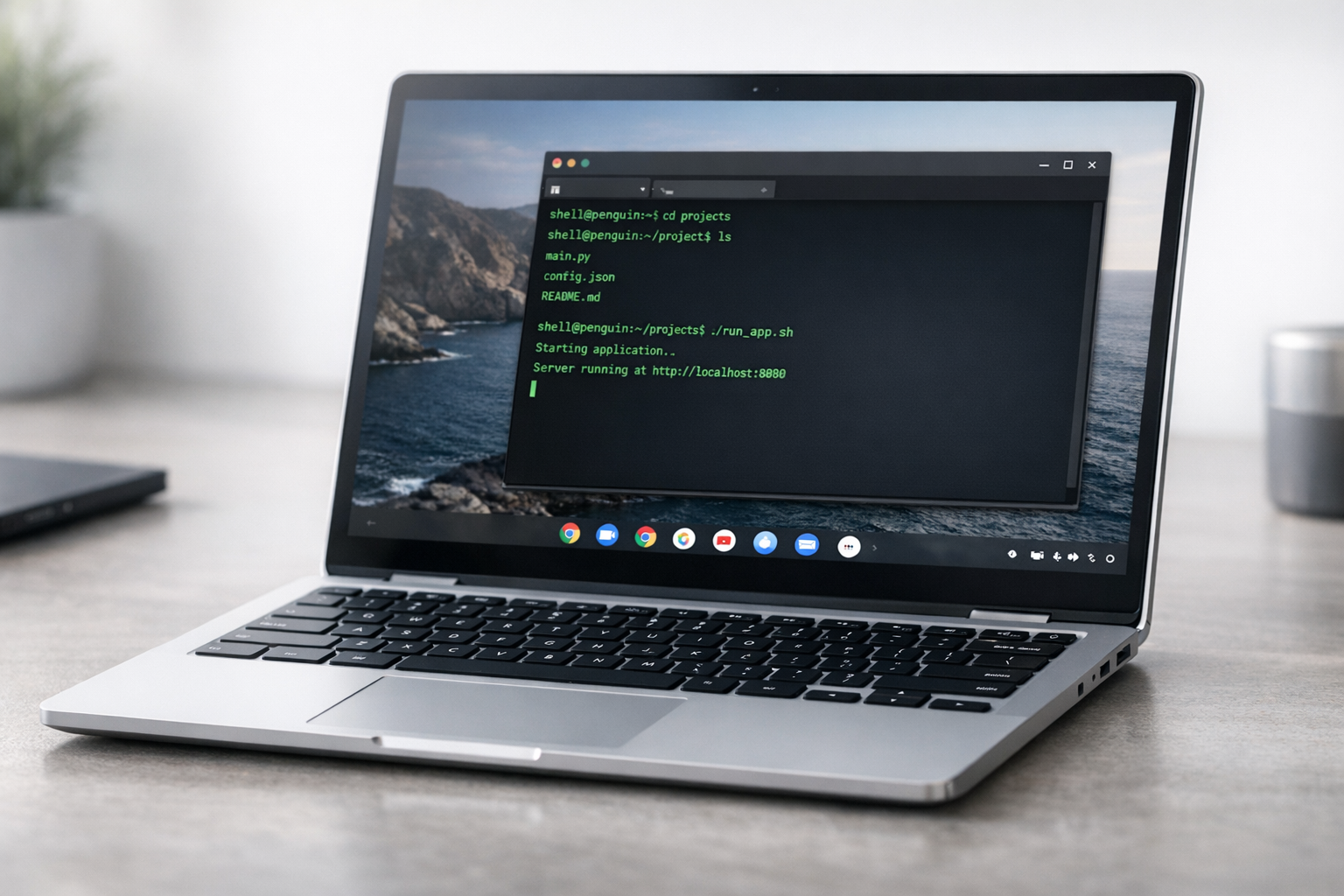
Press Ctrl + Alt + T anywhere in Chrome OS to open a terminal window. In Developer Mode, you can type shell and press Enter to access a full bash shell with root privileges.
From here, you can execute Linux commands, modify system files, install development tools, and perform advanced troubleshooting. Common commands used by developers include:
sudo– Execute commands with root privilegescrossystem– View and modify system propertiesvpd– Access vital product data- Package managers for installing software
Enabling Additional Developer Features
Developer Mode unlocks several additional capabilities through Chrome flags and system settings:
To access Chrome flags: Navigate to chrome://flags in your browser to enable experimental features like additional API access, interface modifications, and development tools.
To install Crouton: Many developers use Crouton (Chromium OS Universal Chroot Environment) to run full Linux distributions alongside Chrome OS, providing access to desktop development environments like Ubuntu, Debian, or Kali Linux.
Common Use Cases: Why Users Enable Developer Mode
Understanding practical applications can help you decide if learning how to turn on developer mode chromebook is worthwhile for your specific needs.
Software Development and Testing
Professional developers often enable Developer Mode to test web applications, Android apps, or Linux software in a controlled environment. The ability to access development tools, modify system behavior, and test across different configurations makes Chromebooks valuable testing platforms.
Development agencies and freelance programmers frequently maintain Chromebooks in Developer Mode as lightweight, portable development machines that complement their primary workstations.
Educational and Learning Purposes
Computer science students and coding bootcamp participants sometimes use Developer Mode to access Linux development environments, practice command-line skills, and experiment with system administration without risking their primary computers.
Educational institutions with technology programs may maintain dedicated Chromebooks in Developer Mode for teaching purposes, though these devices should be clearly segregated from general-use equipment.
System Customization and Experimentation
Tech enthusiasts enable Developer Mode to install alternative operating systems, customize the user interface beyond standard options, or simply explore how Chrome OS works under the hood. This hobbyist use case represents a significant portion of Developer Mode users.
Troubleshooting and Recovery
IT professionals occasionally use Developer Mode as a troubleshooting tool for deeply corrupted systems or to perform advanced recovery operations that aren’t possible in standard mode. However, this should only be done by experienced technicians who understand the risks.
Risks and Limitations of Developer Mode
Beyond the security implications already discussed, Developer Mode comes with practical limitations that affect daily use.
Boot-Time Warning Screen
Every time your Chromebook starts, you’ll see the “OS verification is OFF” warning screen for 30 seconds. While you can bypass it by pressing Ctrl + D, this screen becomes a regular part of your boot experience. Some users find this annoying, especially if they frequently restart their devices.
Accidental Data Loss Risk
Because pressing the space bar on the warning screen disables Developer Mode and wipes the device, there’s a risk of accidental data loss. This is particularly concerning in households with children or in workplace environments where others might use your device.
Performance Considerations
While Developer Mode itself doesn’t significantly impact performance, the types of activities users engage in while in Developer Mode—such as running virtual machines or installing resource-intensive development tools—can affect system speed and responsiveness.
Incompatibility with Enterprise Management
Chromebooks enrolled in enterprise or education management systems typically cannot enable Developer Mode due to administrative policies. Attempting to do so will fail, and the device will remain in verified boot mode.
How to Disable Developer Mode (and Recover Security)
If you decide Developer Mode isn’t right for you, or if you need to return your Chromebook to standard security settings, the process is straightforward but involves another complete data wipe.
To disable Developer Mode, reboot your Chromebook and wait for the “OS verification is OFF” warning screen. Press the space bar and confirm when prompted. The system will transition back to verified boot mode, wiping all data in the process.
After approximately 10-15 minutes, your Chromebook will restart in standard mode with full security protections restored. You’ll need to go through the initial setup process again.
Troubleshooting Common Developer Mode Issues
Issue: Recovery Screen Shows but Ctrl + D Does Nothing
Some Chromebook models require additional steps, such as removing physical write-protect screws on the device’s motherboard. This is common on older enterprise and education models. Consult your specific device’s documentation or the Chromium OS developer site for model-specific instructions.
Issue: System Boots to “OS Verification is OFF” but Shell Command Doesn’t Work
If you’ve enabled Developer Mode but can’t access shell commands, ensure you’re typing shell (not shells or other variations) in the Crosh window after pressing Ctrl + Alt + T. The command is case-sensitive.
Issue: Performance Degradation After Enabling Developer Mode
If you experience slowdowns, check what processes are running using the Chrome OS Task Manager (Shift + Esc). Disable unnecessary Chrome extensions and close unused Linux applications if you’re running Crouton or other development environments.
Alternatives to Developer Mode
Before enabling Developer Mode, consider whether alternative solutions might meet your needs without compromising security.
Linux (Beta): For most development work, Chrome OS’s built-in Linux container provides access to development tools, command-line utilities, and Linux applications without the security risks of Developer Mode.
Android Studio on Chrome OS: If you’re developing Android apps, recent Chromebooks support Android Studio directly without requiring Developer Mode.
Cloud Development Environments: Services like GitHub Codespaces, AWS Cloud9, and Google Cloud Shell provide full development environments accessible through your browser, eliminating the need for local Developer Mode access.
Separate Development Machine: For serious development work, maintaining a dedicated Linux laptop or desktop alongside a secured Chromebook often provides a better balance of functionality and security.
Frequently Asked Questions
Will enabling Developer Mode void my Chromebook’s warranty?
No, enabling Developer Mode does not void hardware warranties from major manufacturers like HP, Lenovo, Asus, or Dell. However, it may complicate support interactions, and support staff might ask you to disable it before troubleshooting. Any damage caused by activities performed in Developer Mode (such as firmware modifications) may not be covered under warranty.
Can I enable Developer Mode on a school or work Chromebook?
Most enterprise-managed and education-enrolled Chromebooks have policies that prevent enabling Developer Mode. Even if technically possible, doing so likely violates acceptable use policies and could result in disciplinary action. Always obtain explicit permission from your IT administrator before attempting to enable Developer Mode on a device you don’t personally own.
Is there a way to enable Developer Mode without wiping my data?
No, the data wipe is an intentional security feature that cannot be bypassed. Google designed this requirement to prevent unauthorized users from gaining access to your information. The only way to enable Developer Mode is to accept the complete data loss that comes with it, which is why thorough backups are essential.
How does Developer Mode affect battery life?
Developer Mode itself has minimal impact on battery life. However, the activities users engage in while in Developer Mode—running Linux applications, development servers, virtual machines, or background processes—can significantly increase power consumption. Your actual battery performance will depend on how you use the additional capabilities Developer Mode provides.
Can I return to normal mode if I change my mind?
Yes, you can disable Developer Mode at any time by pressing the space bar at the “OS verification is OFF” screen during boot. This will restore standard security settings but will wipe all data again. The process takes 10-15 minutes and returns your Chromebook to factory security settings.
Conclusion: Making an Informed Decision About Developer Mode
Enabling Developer Mode on your Chromebook unlocks powerful capabilities that can transform your device into a versatile development platform, testing environment, or learning tool. The ability to access the underlying Linux system, install custom software, and bypass certain restrictions appeals to developers, IT professionals, and tech enthusiasts who need more control than standard Chrome OS provides.
However, this power comes with significant trade-offs. The complete data wipe required for activation, ongoing security vulnerabilities, and boot-time warning screens mean Developer Mode isn’t appropriate for everyone. For most users, Chrome OS’s built-in Linux (Beta) feature provides sufficient development capabilities without compromising security.
If you’ve decided that Developer Mode is right for your needs, follow the steps outlined in this guide carefully, ensure your data is thoroughly backed up, and understand the security implications of operating your device in this mode. With proper preparation and awareness, Developer Mode can be a valuable tool that extends your Chromebook’s capabilities far beyond its standard configuration.
For those seeking development capabilities without the risks, explore alternatives like Linux (Beta), cloud-based development environments, or maintaining a separate dedicated development machine. The right choice depends on your specific needs, technical expertise, and security requirements.
Whether you enable Developer Mode or choose an alternative solution, understanding your options empowers you to make the best decision for your computing needs and workflow.
